
Seeing the message “This app isn't compatible with your device” can be confusing, particularly when the same application works on a friend's phone. The message usually means that the application distributor or the Android installation system has identified a requirement that your device does not currently meet.
That requirement could involve the Android version, processor architecture, screen characteristics, hardware features, geographic availability, or a restriction set by the developer. Understanding the cause is more useful than repeatedly attempting the same download.
What Does App Compatibility Mean?
App compatibility describes whether an application can be installed and function as intended on a particular device. Android phones and tablets do not all have the same software, processing capabilities, sensors, memory, or display characteristics. Developers therefore define requirements for the devices they intend to support.
Google Play uses application requirements and device information to determine which apps are available to a particular user. An application can be hidden from a device's search results or marked unavailable when it does not meet the relevant criteria. Developers can also limit availability according to factors such as hardware features and region.
Compatibility can also change over time. A developer may release a version that supports additional devices, discontinue support for older operating systems, or change the app's hardware requirements. As a result, an application that worked previously may become unavailable to new users on some devices.
Your Android Version May Be Too Old
One of the most common reasons for an incompatibility message is that the phone runs an Android version below the application's minimum requirement. Developers sometimes use programming interfaces that were introduced in newer Android releases. If essential features depend on those interfaces, an older device may not be able to run the app correctly.
Understanding minimum and target API levels
Android applications specify API-level information that helps define their software requirements and expected behavior. The minimum API level describes the oldest Android platform the app declares support for. The target API level describes the platform behavior against which the developer designed and tested the app.
These values serve different purposes. A higher target API level does not automatically mean that the app requires that exact Android version. The minimum API level is the more direct indicator of the lowest supported platform, although other requirements may still affect compatibility.
Minimum API level
Defines the lowest Android API level declared as supported by the application. A device below this requirement may be unable to install the package.
Target API level
Indicates the Android platform behavior for which the app was designed. It influences compatibility behavior and platform requirements, but is not identical to the minimum version.
How to check your Android version
Open Settings on your device and look for About phone, About device, or Software information. The precise label depends on the manufacturer. Check the Android version and, where available, the security update information.
Next, compare your device's version with the requirements listed on the application's official store page or developer website. If a compatible system update is available, installing it may resolve the issue. However, many older phones no longer receive major Android upgrades.
Hardware and Processor Limitations
Not all compatibility decisions are based on the Android version. An application can require particular hardware or a processing capability that a device does not provide. Developers may declare certain features as essential, causing distribution systems to exclude devices that lack them.
Processor architecture
Android devices can use different processor architectures and supported native-code formats. An app containing native libraries for a particular architecture may not include the files needed by another device. Modern distribution systems can deliver device- appropriate packages, but manually obtained packages may have different limitations.
RAM and storage
Insufficient storage can prevent an installation even when an app otherwise supports the device. Limited RAM can also contribute to crashes, slow performance, or applications closing in the background. These symptoms should not automatically be interpreted as a formal compatibility restriction.
Sensors, cameras, and other features
Some applications depend on GPS, a camera, particular Bluetooth capabilities, specific sensors, or other device features. A developer can mark certain hardware as necessary for the app's primary purpose. A device without that feature may not be considered compatible.
Processor
Architecture and native library requirements can affect whether a package is installable.
Memory and storage
Limited free space can block installation, while low memory may affect performance.
Hardware features
Some apps depend on cameras, sensors, GPS, or other declared device capabilities.
Screen and device type
Developers may specify support for particular screen sizes, form factors, or device categories.
Other Reasons an App May Be Incompatible
Regional availability
Developers may distribute an application only in selected countries or regions. Availability can depend on licensing, business decisions, local requirements, or the services the app supports. Your Google Play country can therefore affect which applications are visible to you.
Device certification and distribution restrictions
Some applications rely on particular Google services, device certification, or distribution conditions. A device without the required support may have difficulty using certain features, even when the hardware appears adequate. Check the application's official requirements rather than assuming that every Android device behaves identically.
Parental controls and account settings
Parental controls may restrict apps based on age ratings or configured content limits. Account, family, or organization management settings can also affect access. These restrictions differ from an unsupported Android version, although the result may look similar to the user.
Application updates and developer decisions
Developers periodically change the devices they support. They may discontinue older systems, introduce new requirements, or remove an app from distribution. An application that was previously available may no longer appear in the store for your particular device.
Installation package differences
Applications can be distributed through different package formats and delivery methods. A standalone APK may not contain every resource or architecture-specific component required by a particular device. Some applications use split APKs or additional downloadable assets. An incomplete or unsuitable package can cause installation errors.
Users learning about alternative Android distribution methods may find this guide useful: What Is Sideloading on Android? A Complete Explanation. It explains how installing software outside the usual app-store process differs from ordinary app distribution. Sideloading does not remove an app's genuine technical requirements.
Common Compatibility Problems Compared
The message you see and the stage at which the problem occurs can provide useful clues. This comparison can help you decide what to investigate first.
| Possible cause | Typical symptom | Recommended check |
|---|---|---|
| Old Android version | The store says the app requires a newer version. | Check system updates and the minimum OS requirement. |
| Unsupported hardware | The app is unavailable on one device but appears on another. | Review hardware and device compatibility requirements. |
| Regional restriction | The app is not available in your country or store region. | Check the official availability information. |
| Insufficient storage | The download or installation fails despite compatibility. | Check free space and the exact error message. |
| Invalid or incomplete package | An APK fails during installation or reports a package error. | Verify the source and obtain the correct package. |
| Account or parental restrictions | The app cannot be accessed with a particular account. | Review account settings and configured restrictions. |
| Runtime bug | The app installs but closes or crashes when opened. | Check app updates, system requirements, and developer support. |
These symptoms are clues, not definitive diagnoses. For example, a failed installation can result from more than one cause. Reading the complete error message and checking the app's official requirements is more reliable than relying on the symptom alone.
How to Check Whether Your Device Supports an App
A few basic checks can narrow down the cause without requiring technical tools or risky changes to your phone.
- Check the app's official listing. Open its Google Play listing, if available, and review the description, required operating system, and compatibility information. Availability can differ between devices.
- Find your Android version. Open Settings and look under About phone or Software information. Compare the version with the app's documented requirements.
- Check for system updates. Look for an official software update from your device manufacturer. Install supported updates and restart the device if necessary.
- Check available storage. Review the storage section in Settings. Free up unnecessary files only when needed, and avoid deleting important personal data.
- Review account and region settings. Check whether the app is available in your Google Play country and whether parental or managed-device controls apply.
- Contact the developer if needed. Provide your device model, Android version, app version, and the exact error message. The developer can confirm whether support is planned or technically possible.
Where to find the compatibility details in Google Play
Open Google Play on your Android device, search for the application, and open its listing. Depending on the interface, details may appear under the About this app or About this game section. Google Play's help documentation also explains how compatible-device information is displayed and why an application may not be available.
What Can You Do to Fix the Problem?
The appropriate solution depends on the cause. The following steps are sensible first actions for common installation problems. They will not make every unsupported device compatible.
Install an available Android update
If your phone supports a newer operating system, installing the manufacturer's official update may satisfy the app's minimum requirement. Older devices may not receive newer releases, so check the manufacturer's support information first.
Update the app and Google Play components
If the app is already installed, check for an official app update. Also check whether Google Play and relevant system components need updating. Restarting the phone can help resolve temporary issues, although it will not fix a genuine hardware or API-level mismatch.
Check storage and installation errors
If the error relates to storage, remove unnecessary downloads or applications after reviewing their contents. If the message indicates a parsing or package conflict, verify that the file comes from the original developer and matches your device.
Use a supported alternative
If the app does not support your phone, check whether the developer offers a compatible web version, a supported alternative application, or a release for your device. For work or study, ask the organization that provides the app whether an officially supported option exists.
Is Installing an Incompatible APK a Good Idea?
Obtaining an APK outside an app store does not automatically solve compatibility issues. Android still checks important package requirements, and an application may fail to install or function properly if it relies on features that the device does not support.
Files obtained from unknown sources may also be modified, incomplete, outdated, or malicious. A package that appears to match the app's name is not proof that it came from the genuine developer. Be particularly careful when a website asks you to ignore a security warning or grant extensive permissions without a clear reason.
- Prefer the official app store or developer distribution page.
- Verify the app's publisher and package details.
- Keep Android security protections enabled.
- Read permission requests before granting access.
- Do not enter passwords into an app you cannot verify.
- Keep system software and applications updated.
If a developer no longer supports your device, the safest decision may be to use an alternative that receives current security updates. Compatibility and security should be considered together, not as separate problems.
Mobile Devices, Software, and Compatibility
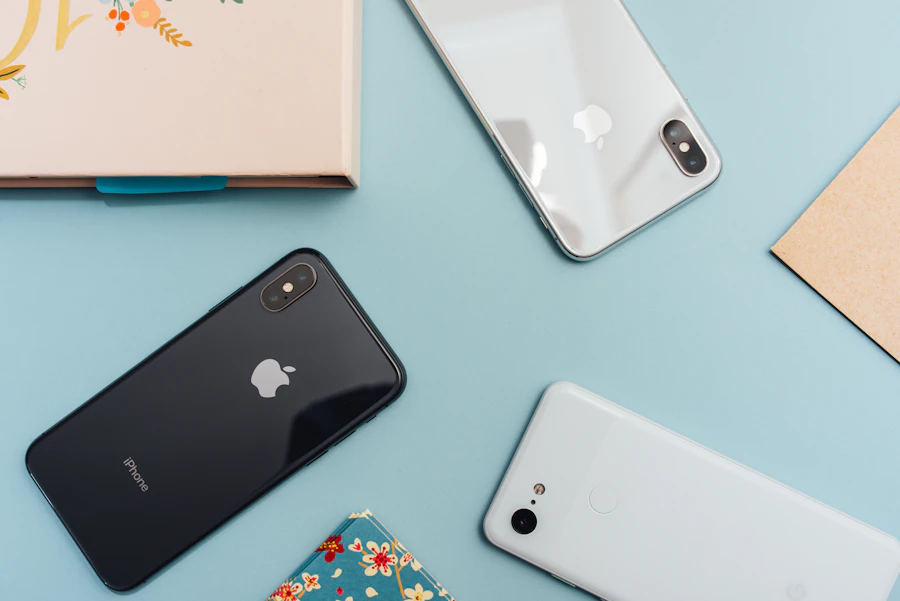
These illustrative photographs represent the different elements involved in mobile app use. They are general technology images, not screenshots of a specific device's compatibility settings.
For general information about Android apps and installation methods, readers may also explore هابي مود as part of their broader research. Always review an app’s source, requested permissions, and compatibility details before installing it.



Frequently Asked Questions
Why does an app work on another phone but not mine?
The other phone may have a newer Android version, a different processor, additional hardware features, or access to a different regional app listing. Compare the devices' specifications and the application's official requirements.
Can updating Android fix an incompatibility message?
Yes, if the problem is caused by an outdated Android version and your device can receive a suitable update. Updates will not resolve every restriction, such as unsupported hardware or regional limits.
Does an incompatible app mean my phone is too old?
Not necessarily. The issue could involve the app's distribution region, device configuration, hardware requirements, or account restrictions. Check the specific message before drawing a conclusion.
Will clearing Google Play Store cache solve the problem?
Clearing cache may help with certain temporary store errors, but it cannot make an unsupported Android version or missing hardware compatible. Use it only when the symptoms suggest a store-related problem, and consult official troubleshooting guidance.
Can an APK bypass device compatibility restrictions?
An APK may be distributed outside a store, but it does not remove the app's underlying technical requirements. Android may still reject the package, and an app that installs may not run correctly.
Why is an app unavailable in my country?
The developer may restrict distribution by region for licensing, business, regulatory, or service-related reasons. Check the official listing or contact the developer for current availability information.
Can low storage cause an incompatibility message?
Low storage commonly causes download or installation failures, but a formal compatibility message can indicate a different issue. Read the complete error and check the device requirements before attempting additional fixes.
How can I know whether a phone supports an app before installing it?
Review the official app listing, supported Android versions, required hardware, and the developer's compatibility information. The listing may also show whether your registered device is eligible.
Official Android Compatibility Resources
Android's official documentation explains the requirements and distribution rules used to determine whether apps can run on particular devices. Consult these primary sources for technical details.
Conclusion
An Android app may be incompatible with a device for several reasons, including an unsupported operating system, hardware limitations, package architecture, regional availability, or developer-imposed restrictions. The message does not necessarily mean that the phone is faulty or that the application is unsafe.
Start by checking your Android version and the app's official requirements. Then investigate hardware features, storage, account settings, and regional availability as needed. Install supported system updates, use trusted distribution sources, and contact the developer if the reason remains unclear.
A careful diagnosis is more effective than trying random installation workarounds. It also helps you protect your device while determining whether a compatible release or alternative is available.